What Is Master Data?
Master data is the foundational reference information that powers the rest of Latent. Before you can track a film stock, link a camera to a shooting log, or check lens compatibility, the relevant cameras, lenses, film brands, and labs need to be registered in your master data library.
Think of master data as your personal equipment database. You set it up once and then draw from it continuously as you log your work.
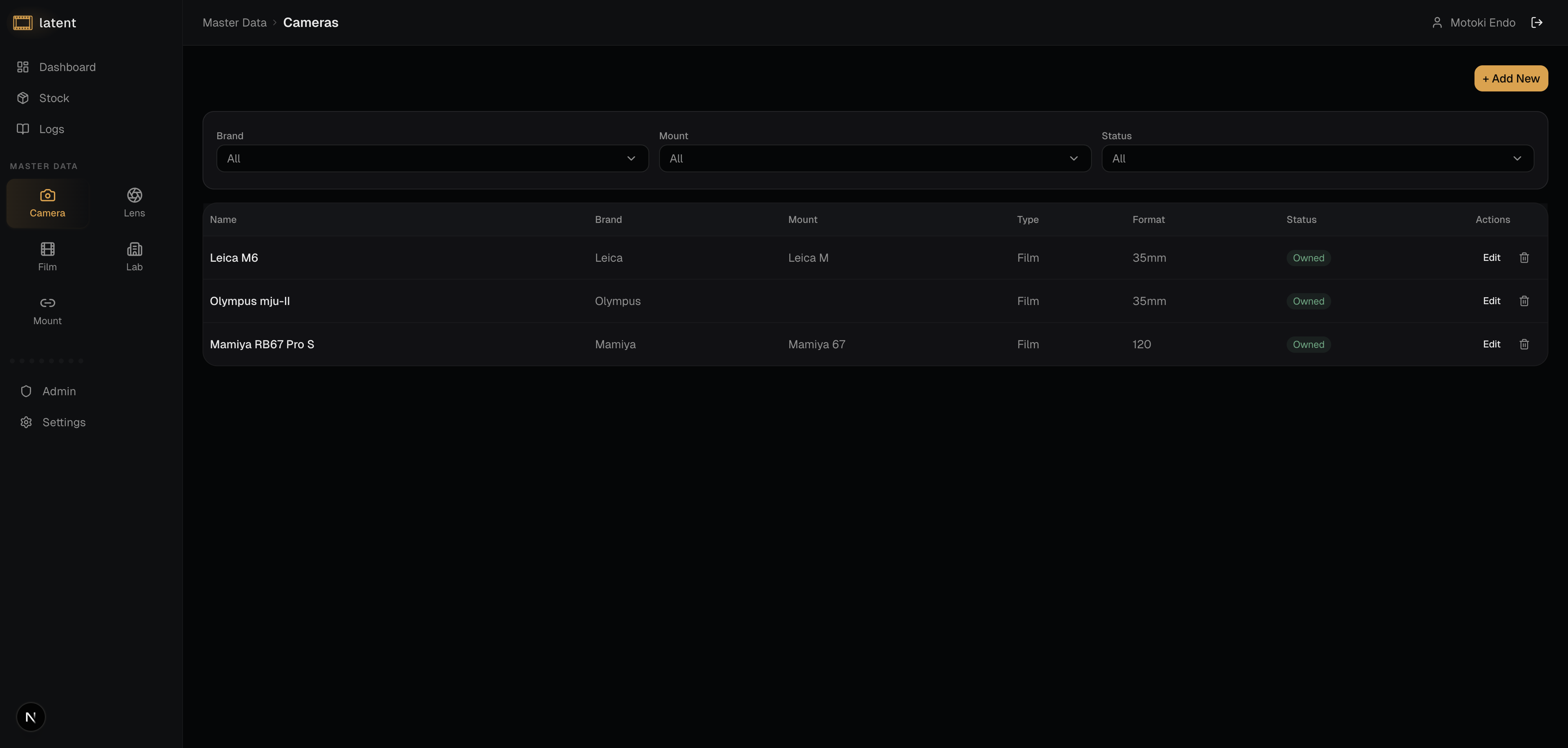
Registering Cameras
To add a camera, navigate to Master Data from the main menu and select the Cameras tab. Click Add Camera to open the registration form.
Fill in the following fields:
- Brand (required): The manufacturer name (e.g., Nikon, Canon, Leica, Pentax).
- Model (required): The specific model name (e.g., F3, AE-1, M6, 67).
- Name: Automatically generated from Brand and Model.
- Mount (required): The lens mount used by this camera body. Select from the available mount types in the dropdown. Not required for cameras with fixed lenses.
- Type: Select film or digital.
- Format (required): The film format this camera uses (35mm, 120, 4x5, etc.).
- Serial Number (optional): The camera's serial number.
- Fixed Lens: Check this if the camera has a non-interchangeable lens.
- Is Sold: Check this if you have sold the camera.
- Notes (optional): Any additional details such as purchase date or modifications.
Once saved, this camera becomes available for selection when you move a film stock to In Use or when you edit a shooting log.
Registering Lenses
Select the Lenses tab under Master Data and click Add Lens.
- Brand (required): The lens manufacturer.
- Model (required): The lens name or description (e.g., Nikkor 50mm f/1.4).
- Name: Automatically generated from Brand and Model.
- Mount (required): The mount this lens attaches to. This must match the camera mount for compatibility to be recognized.
- Focal Length (required): Enter the focal length in millimeters.
- Max Aperture (optional): The widest aperture the lens can open to (e.g., f/1.4).
- Min Aperture (optional): The smallest aperture.
- Serial Number (optional): The lens serial number.
- Is Sold: Check this if you have sold the lens.
- Notes (optional): Any additional details.
Mount Compatibility
One of the most useful features in Latent is automatic mount compatibility checking. When you select a camera in a shooting log or during stock status changes, Latent filters the available lens list to show only lenses that are compatible with that camera's mount.
Compatibility is determined by the mount type you assign to both cameras and lenses, as well as mount compatibility rules configured in the system. These rules can account for adapter-based combinations, so even cross-mount setups can be reflected accurately.
Managing Film Brands
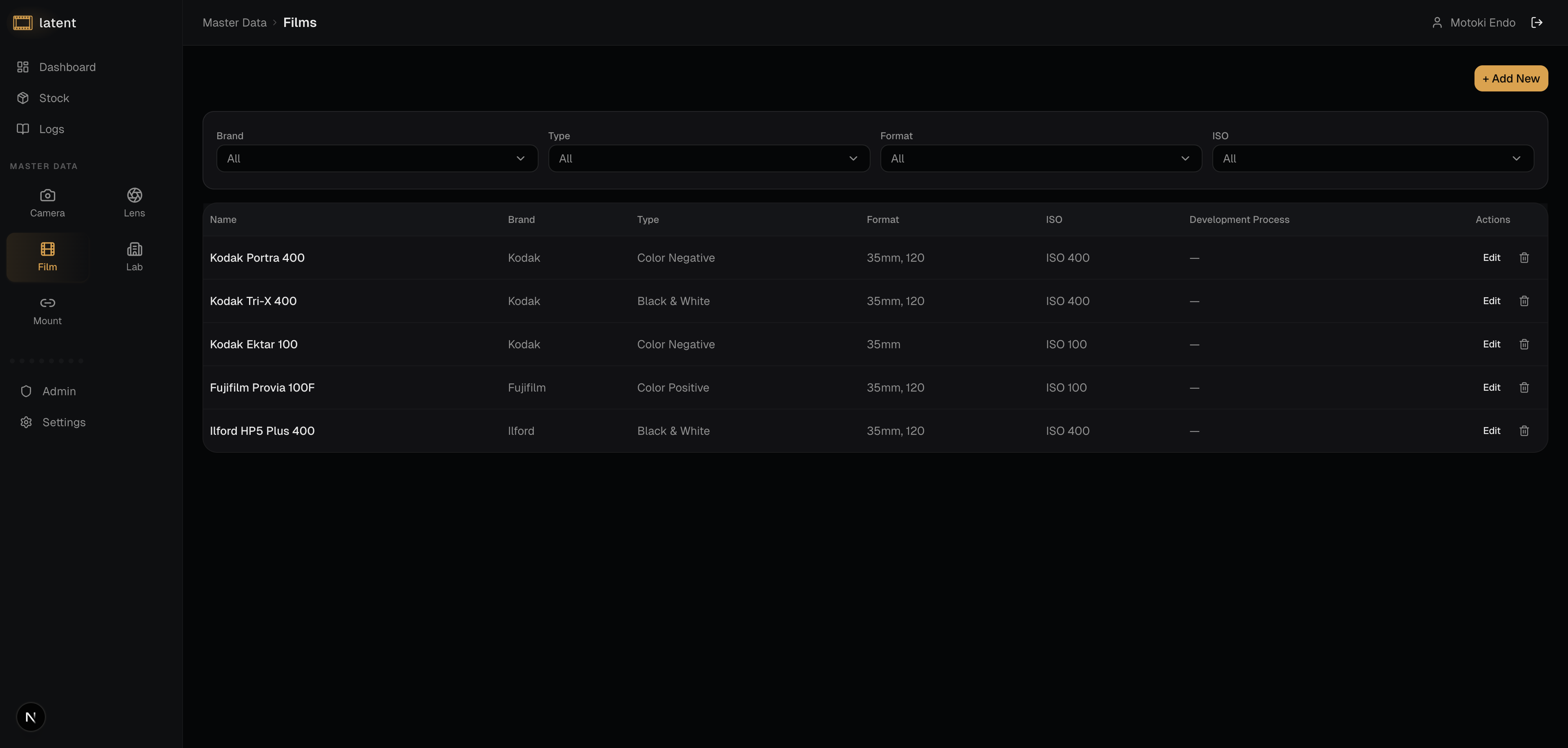
The Films tab under Master Data lets you register the film stocks you shoot.
Click Add Film and enter:
- Brand (required): The manufacturer (e.g., Kodak, Fujifilm, Ilford, Cinestill).
- Model (required): The specific stock name (e.g., Portra 400, Velvia 50, HP5 Plus).
- Name: Automatically generated from Brand and Model.
- Available Formats: Check the formats this film is available in (35mm, 120, etc.) using the checkboxes.
- ISO (required): The box speed of the film.
- Type (required): Color Negative, Color Positive, or Black and White.
- Process (optional): The development process (e.g., C-41, E-6).
- Notes (optional): Any additional information about the film's characteristics.
When you register a new film stock in the Stocks section, you select from this list of film brands.
Adding Lab Information
Register your development labs under the Labs tab in Master Data.
- Lab Name (required): The name of the development lab.
- Location (optional): City or region.
- Contact (optional): Phone, email, or website.
- Turnaround Time (optional): Typical processing time.
- Price Range (optional): General pricing information.
- Notes (optional): Any additional details.
Registered labs are selected when you move a stock to In Laboratory (required), making it easy to track which lab handled each roll.
Managing Mounts
The Mounts tab lets you view and manage lens mount definitions.
- Name (required): The mount name.
- ID: Automatically generated.
- Category (required): The mount category.
- Description (optional): Additional information about the mount.
System mounts (built into Latent) cannot be edited. You can add and edit custom mounts as needed.
Keeping Your Master Data Up to Date
Your master data library is most useful when it accurately reflects the equipment and materials you actually use. A few maintenance habits help:
- Add equipment as you acquire it. Register a new camera or lens the first time you pick it up, so it is ready when you start shooting.
- Mark sold equipment. If you have sold a camera or lens, check the "Is Sold" flag rather than deleting it. This preserves the connection to your historical shooting logs.
- Check mount types when something seems wrong. If a lens is not appearing in the compatibility list for a camera, the most common cause is a mismatched or missing mount type on one of the two records.
A well-maintained master data library means that filling out a shooting log takes seconds rather than minutes, and your historical records remain consistent and searchable. Once your equipment is registered, head to stock management to start tracking your rolls from purchase through development. Not sure which films to register first? The choosing your first film guide covers the most popular stocks and what to expect from each.