What Is Film Stock Management?
Every roll of film you own has a story: you buy it, load it into a camera, shoot it, send it to the lab, and eventually get your scans back. Latent gives you a dedicated place to track each roll through that entire journey, so you always know exactly where every stock is and what happened to it.
This guide walks you through how to add your first film stock and move it through the workflow stages until your shooting log is created automatically.
Adding a New Film Stock
To register a new roll of film, navigate to the Stocks section from the main menu and click the Add Stock button.
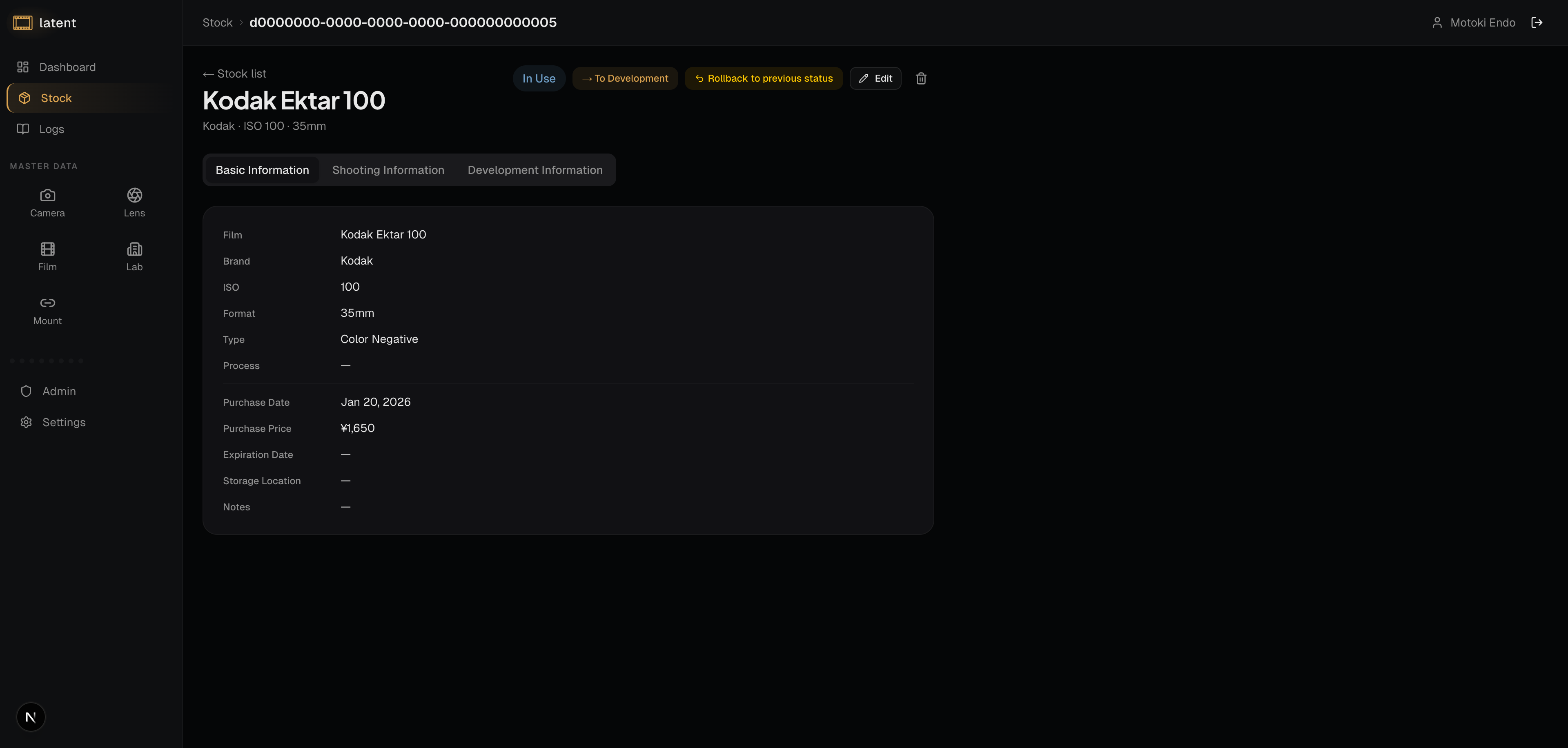
You will be prompted to fill in the following information:
- Film (required): Select from your registered film brands (e.g., Kodak Portra 400, Ilford HP5 Plus). You can add new film brands under Master Data if the one you need is not listed.
- Format (required): Automatically set based on the selected film's available formats.
- Purchase Date (required): Enter when you purchased the roll.
- Purchase Price (optional): Enter the purchase price if you want to track costs.
- Expiration Date (optional): Enter the film's expiration date.
- Storage Location (optional): Note where the film is stored.
- Notes (optional): Add any notes such as where you purchased the roll or special handling instructions.
Once saved, your new stock appears on the Kanban board with the status Available.
Understanding the Status Workflow
Latent uses a five-stage workflow to track each film stock. Think of it as a Kanban board that mirrors the real-world lifecycle of a roll of film.
Available
The stock has been registered but not yet loaded into a camera. This is the default starting state. All newly added stocks land here.
In Use
Move the stock to In Use when you load the film into your camera. At this point, you are required to enter the following:
- Camera (required): The camera body you are using.
- Lens (required): The lens mounted on the camera. Not required for cameras with fixed lenses.
- Shooting Date (required): The date you started shooting.
- Shooting Location (optional): Where you are shooting.
To Development
When you have finished shooting the roll and removed it from your camera, move it to To Development. This signals that the film is ready to be sent to a lab.
In Laboratory
Move the stock to In Laboratory once you have physically handed the roll to a lab. You will be asked to enter:
- Lab (required): Select the lab from your registered labs in Master Data.
- Development Date (optional): The date the film was dropped off.
- Development Cost (optional): The development fee.
- Estimated Completion Date (optional): When you expect to get the film back.
Done
When development is complete and you have received your scans or prints, mark the stock as Done. This is the final stage. No additional input is required — just a confirmation.
Important: Moving a stock to Done automatically creates a shooting log entry linked to that stock. You do not need to create the log manually.
Rolling Back a Status
If you accidentally moved a stock to the wrong status, you can roll it back to the previous status — as long as the current status is not Done. Once a stock reaches Done, it cannot be changed.
Editing Restrictions
Stocks in the Done status cannot be edited. For other statuses, the editable fields depend on the current status stage.
Using the Kanban Board
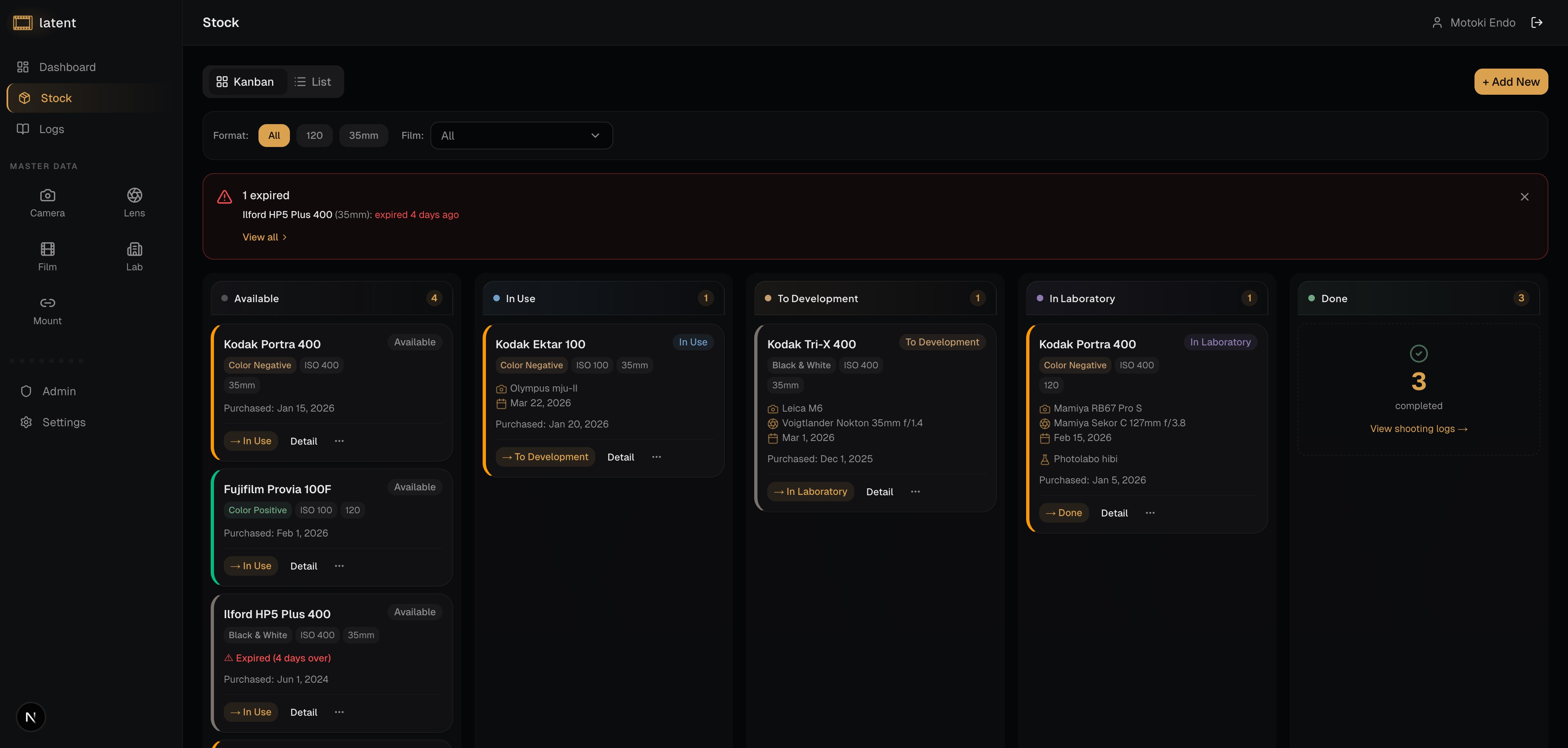
The Stocks page displays all your rolls as cards organized into columns by status. The five columns correspond to each workflow stage, with the Done column showing only a count of completed stocks.
- Click a card to open the detail view where you can review information and advance the status.
- Filter by Format using the chip-style filter at the top of the board.
- Filter by Film using the Combobox to select a specific film brand.
The Kanban view gives you a visual snapshot of how many rolls are currently in each stage, which is especially useful if you are managing multiple rolls simultaneously.
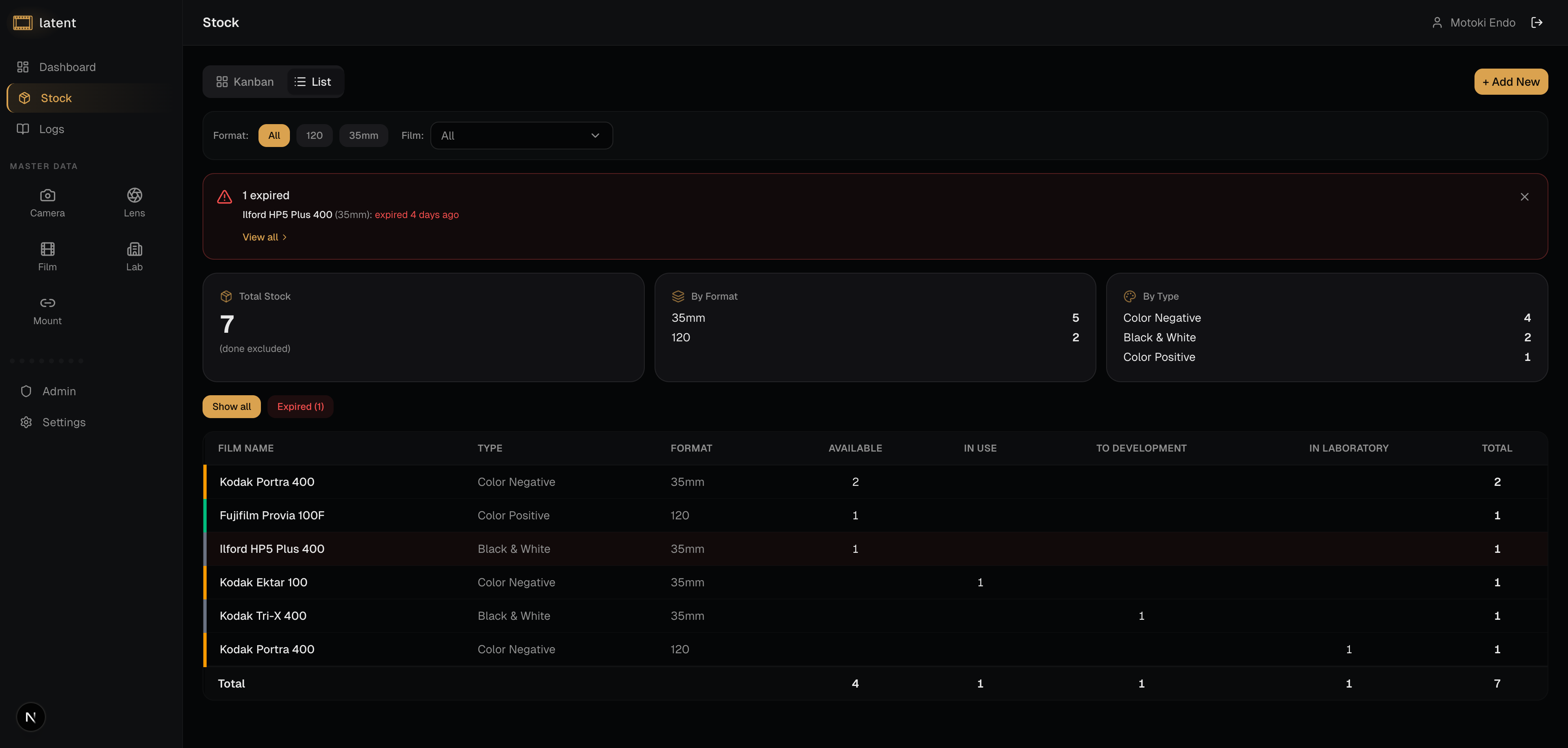
List View
Switch to the list view for a summary table grouped by film brand. This view is useful for seeing how many rolls of each film you have at a glance.
Tips for Keeping Your Stocks Organized
- Register stocks as soon as you buy them, even before you plan to shoot them. This makes it easy to keep an inventory of what you have on hand.
- Use the notes field liberally. Information like storage conditions or intended project is easy to forget but valuable later.
- Move stocks through stages promptly so your Kanban board always reflects the current state of your collection.
- Associate a camera and lens at the In Use stage so your shooting log is pre-filled with accurate equipment data when the stock is marked Done.
By building this habit, you will have a complete and reliable record of every roll of film you have ever shot — ready to review, share, or export at any time. Once a stock is marked Done and a shooting log is generated automatically, you can add scans and enrich the record with location and notes. For practical tips on building a lasting archive, the film archive organization guide is a useful companion.